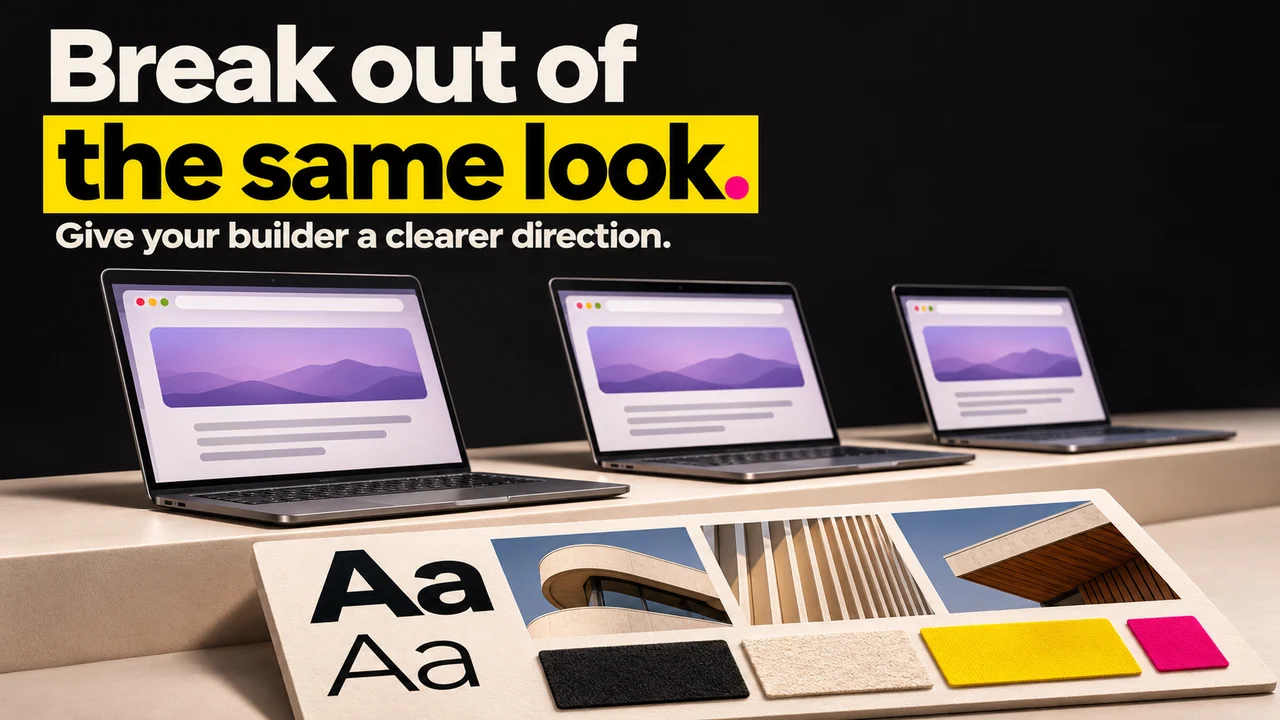

TL;DR
- An interactive website responds to visitors. A site delivered as static files can still include forms, quizzes and JavaScript interactions. “Static” does not necessarily mean unresponsive.
- Consider 5 types of interaction: forms and quizzes, scroll animations, hover effects, live chat, and personalization. Choose the first one around what your visitor needs to do.
- There are 3 overlapping build paths: visual builders, AI-assisted builds and custom development. Compare the actual subscription, integrations, usage and maintenance costs.
- There is no universal percentage saving or animation surcharge. A simple hover effect and a custom 3D experience are different scopes.
- Pick the approach before the tool: the look you want is a separate decision from the tool that delivers it.
- Choose a no-code builder for a marketing site or portfolio; compare visual or AI builders for app logic; use custom code where your needs exceed their built-in features.
👉 Skip the guesswork: MoreMagpie is being built to help you compare interactive-build approaches and bring your AI builder a clearer brief, join the waitlist.
Your Site Loads. Someone Visits. And Then... Nothing Happens.
You spent weeks on your website. The copy is tight. The images are sharp.
A visitor lands. They scroll once. They leave.
Nothing responded to them. Nothing invited them to do anything. That is the difference between a page people read and a page people use.
Here's the trap: every guide on this topic treats "interactive" as a pile of visual effects, and every one is quietly selling you a single tool. That is not a plan. That is a sales pitch.
This guide does it differently. We'll define what interactive actually means, show you which elements matter, name what each path costs, and help you pick the right tool for your idea.
Here's what we'll cover:
- static vs interactive, the real difference
- 5 elements that move the needle
- 3 build paths and what they cost
- how to pick the right tool
- common mistakes that waste time and money
- how to brief your builder
What "Interactive" Actually Means (and What It Does Not)
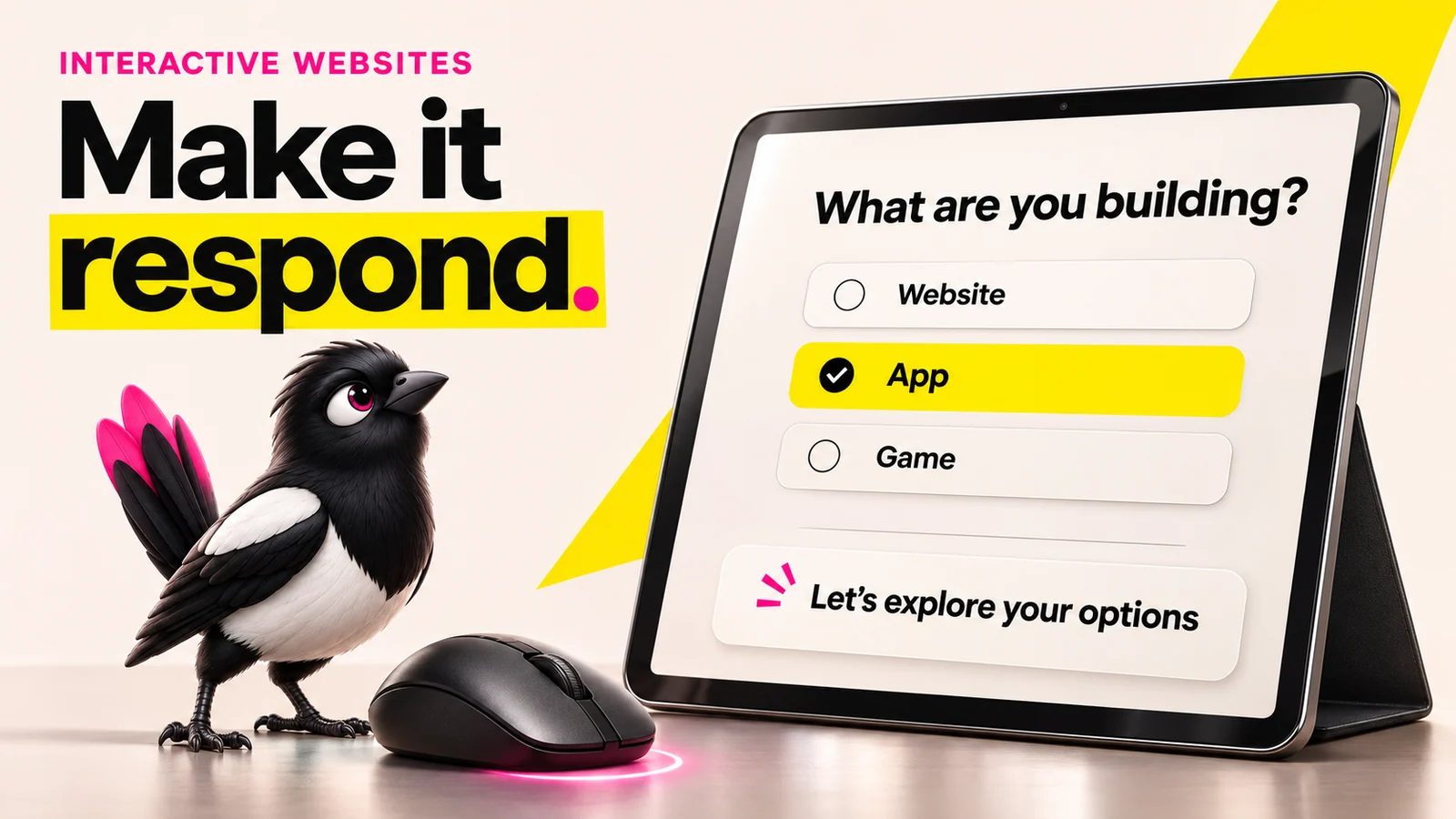
About this illustration
AI-generated editorial illustration. Devices and interfaces are illustrative, not screenshots of tested products or proof of integration.
An interactive website is one that responds to visitor input: forms, quizzes, animations triggered by scrolling, real-time data, personalized recommendations, and dynamic interfaces. Static hosting describes how files are delivered. Those files can still contain JavaScript that responds to visitors or calls a service. Interactivity and static delivery can coexist.
Here is the catch most guides skip.
An animation that plays automatically on page load is not interactive. It is decoration. It looks nice, but the visitor did nothing to cause it.
Real interactivity reacts to a choice: a click, a scroll, an answer typed into a box. If the visitor can change what they see, it's interactive. If they can only watch, it's motion.
Keep that line clear. It decides what you actually need to build.
Step 1: Choose the Interactive Elements That Actually Move the Needle
Start with elements that help a visitor complete a useful action. An effect that looks impressive but makes that action harder is not an improvement.
Here are five elements, to compare against your goal. Each one has a job and a catch.
1. Forms and quizzes. What it does: lets a visitor answer and get something back. Why it helps: it can turn interest into a useful enquiry or answer. Tools like Typeform build conversational forms without code. Catch: a quiz with no follow-up is just a survey.
2. Scroll-triggered animations. What it does: reveals or moves content as the visitor scrolls. Why it helps: it guides attention down the page. GSAP and Lottie power these. Catch: they add weight and can slow your page.
3. Hover effects. What it does: changes an element when the cursor lands on it. Why it helps: cheap feedback that makes a page feel alive. Catch: never put essential information behind hover only, mobile users cannot hover.
4. Live chat or chatbots. What it does: answers visitors in real time. Why it helps: it catches questions before the visitor bounces. Catch: a slow or dumb bot is worse than no bot.
5. Personalization and dynamic content. What it does: shows different content based on who is visiting. Why it helps: relevance can help visitors find what they need; measure whether it actually helps. Catch: it needs data and logic, which pushes you toward a more capable build path.
For a lead-generation site, a short form may be a good first step. For another site, search, a calculator or clearer navigation might help more.
Step 2: Pick Your Build Path and Know What It Actually Costs
These are three useful ways to approach the work, and they can overlap. Visual builders may include AI and custom code too. Pick the path before you fall in love with a tool.
Path A: No-code visual builders. You design and publish through an editor. Often useful for marketing sites, portfolios and landing pages; some also support app logic. Compare plan limits, custom domains and integration costs. Catch: custom behaviour and platform lock-in vary by product.
Path B: AI builders. You describe what you want and the tool generates it. Can help build web apps with logic, logins and data, alongside suitable services and technical checks. Catch: a good brief helps, but generated behaviour still needs review and testing.
Path C: Custom development. A developer writes or adapts the code, possibly with AI assistance. Useful for specific interactions, integrations or control needs. Catch: scope, rates and ongoing maintenance determine the bill. A custom effect does not automatically mean a five-figure project.
So the cheapest path is not always the right one.
Build path decision table
| Path | Useful for | Costs to compare | Catch |
|---|---|---|---|
| Visual builder | Marketing sites and supported app features | Site plan, seats, integrations and usage | Platform limits and lock-in |
| AI-assisted build | Producing or adapting code and features | Builder/model use, hosting, services and review | Generated behaviour needs checking |
| Custom development | Specific logic and integrations | Development, hosting and ongoing maintenance | You need someone to maintain the result |
Read the table before you read a single tool review. The path decides the tool, not the other way around.
Step 3: Match the Tool to the Approach, Not the Other Way Around
Here is the idea no tool round-up tells you: the look you want is a separate decision from the tool that delivers it. You can get the same scroll effect from several builders. So choose based on what you need, not on whichever tool had the prettiest demo.
Below are four common no-code builders, stated factually. None of these is "the pick," they are options to weigh against your path from Step 2.
Framer
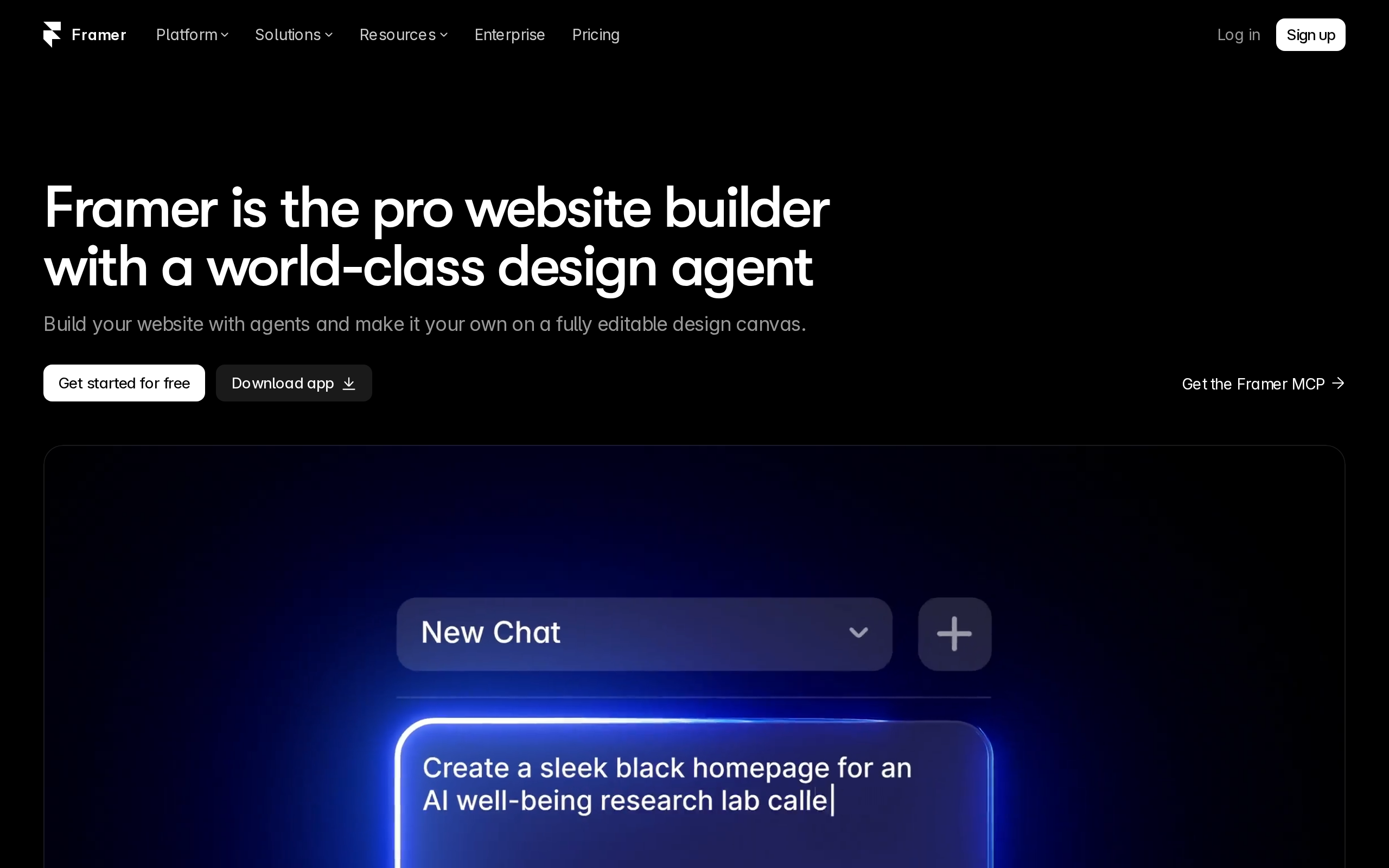
What it does: a visual site builder with animation and interaction features. Stands out for: motion effects and embeds such as Spline. Pricing: Framer’s free plan uses a Framer domain; connecting a custom domain requires a paid plan. Catch: check CMS, commerce integrations and plan limits for your actual project. A vendor demo is not a measured speed comparison.
Webflow
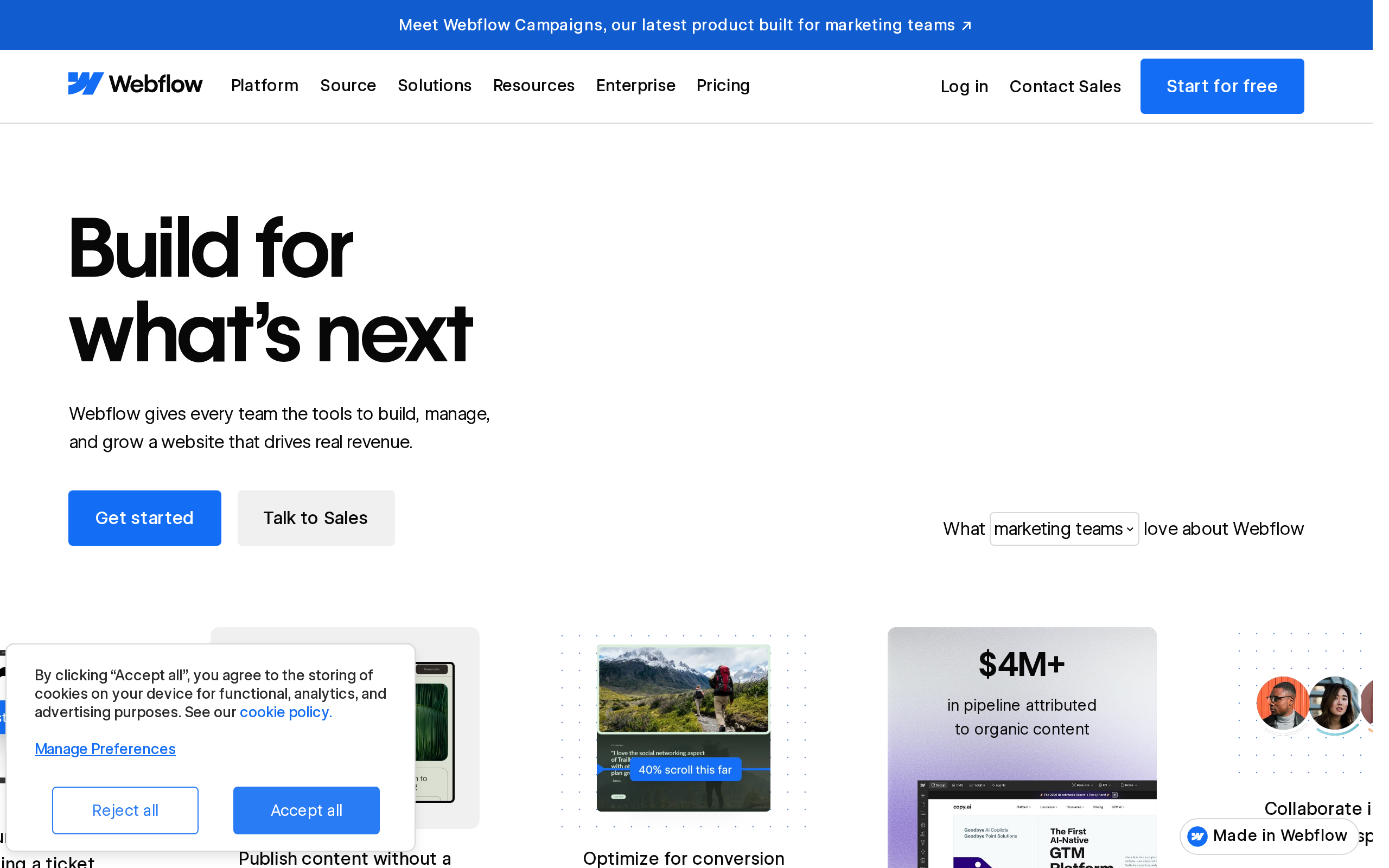
What it does: a visual builder with CMS and detailed design controls. Stands out for: custom layouts and content-driven sites. Pricing: Webflow’s pricing page lists Basic at $15/mo billed yearly, with 300 static pages and 10 GB bandwidth, checked 7 November 2026. Catch: Basic is not the CMS plan, and site, workspace and seat needs can affect the total.
Wix and Wix Studio
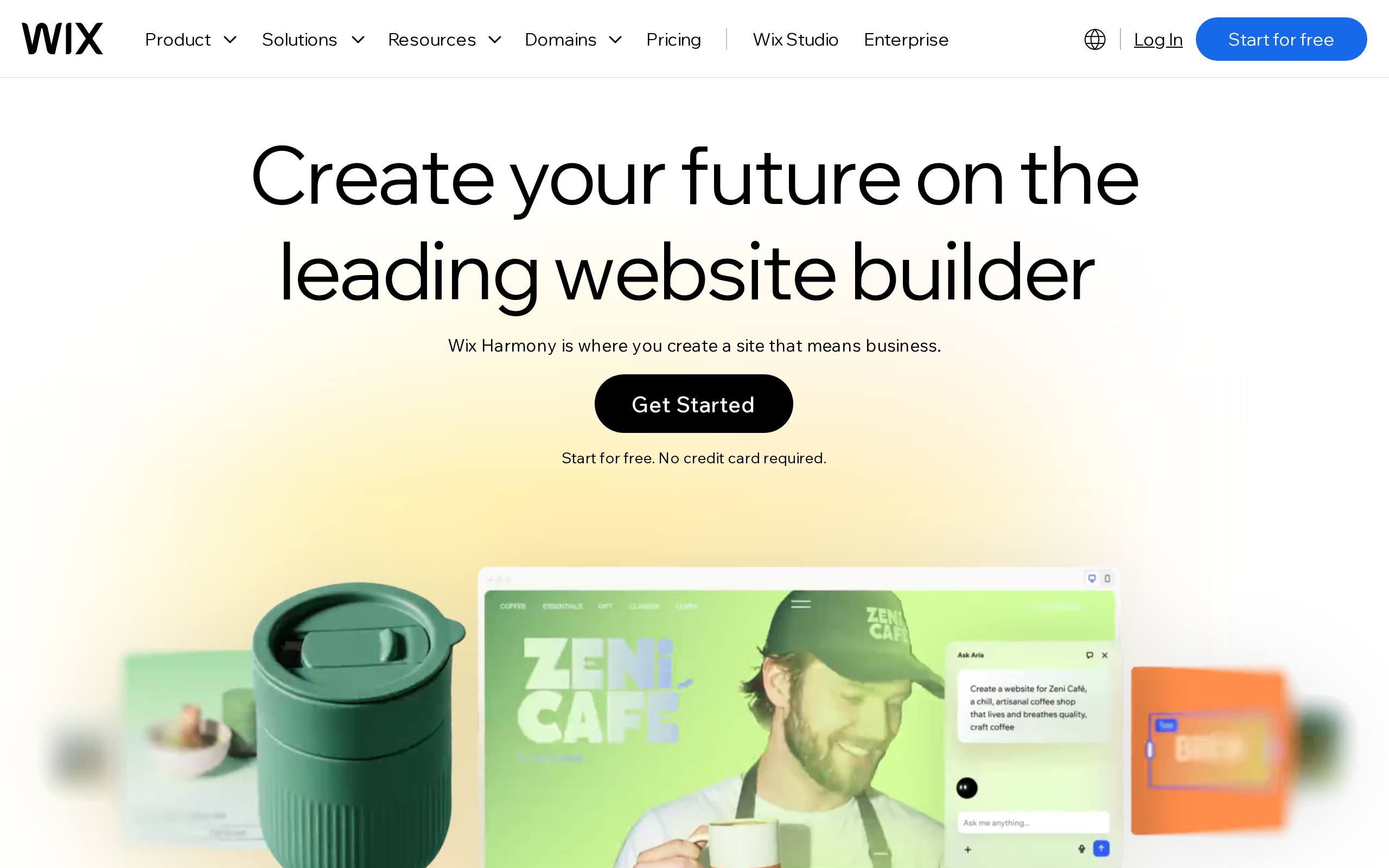
What it does: a visual website builder; Wix Studio adds tools aimed at professional site teams. Stands out for: an integrated editing and publishing workflow. Pricing: Wix supports free publishing on a Wix address; custom domains and features such as payments need an appropriate paid plan. Catch: prices and features vary by product, region and billing term. Check Wix and Wix Studio separately.
Elementor
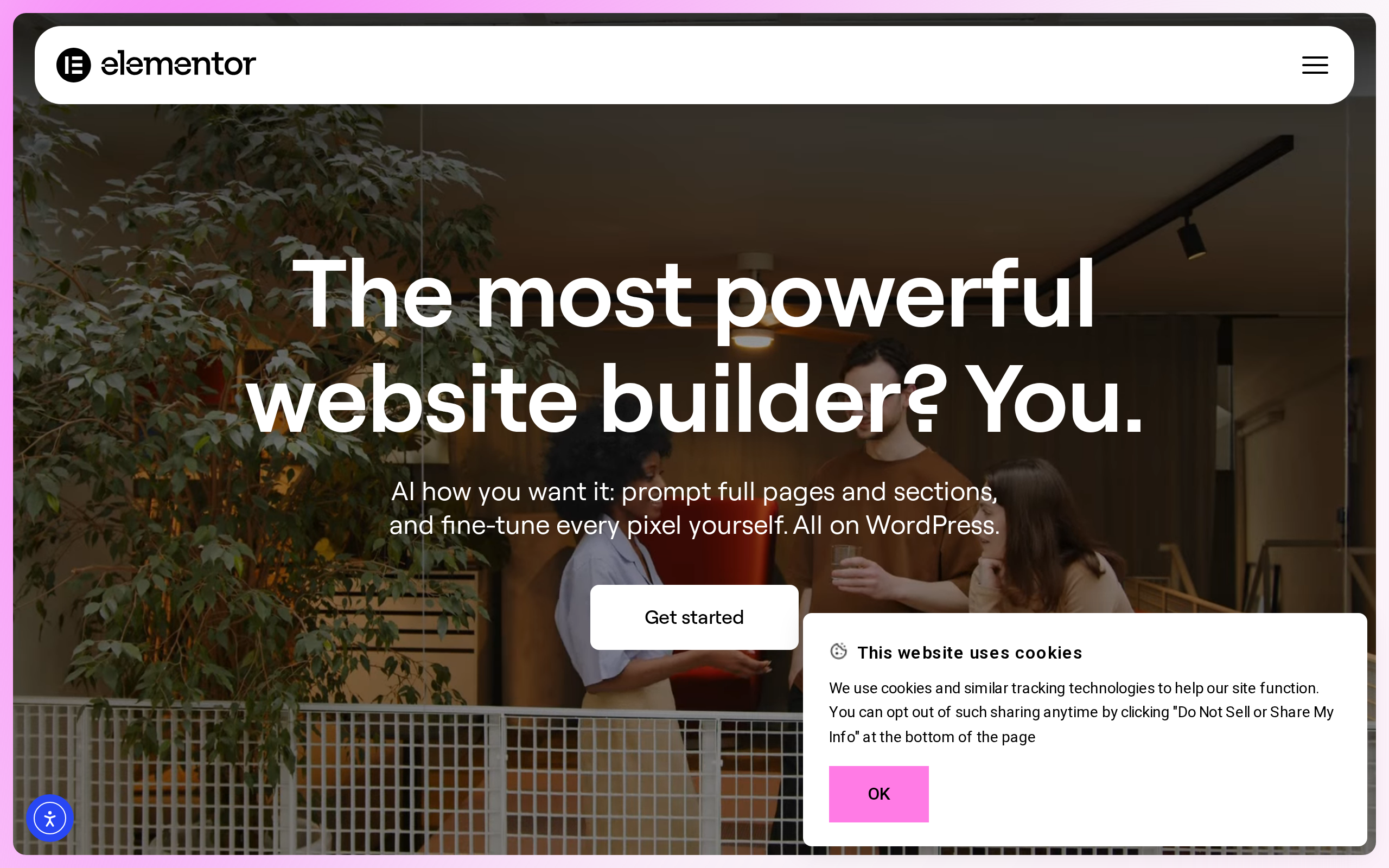
What it does: a drag-and-drop builder that lives inside WordPress. Stands out for: motion effects and pop-ups on plans that include those features. Worth noting: it needs a WordPress install first, so it suits people already on WordPress. Pricing: plugin pricing on top of your WordPress hosting. Catch: you are managing WordPress underneath, which is its own maintenance job.
Common Mistakes That Waste Time and Money
Most interactive-site regret comes from four avoidable errors.
Mistake 1: Picking the tool before the approach. You buy Framer, then discover you needed real app logic. Decide the path first, then shop for tools.
Mistake 2: Adding animation that hurts load speed. Every scroll effect and Lottie file has weight. A beautiful page that loads slowly loses visitors anyway.
Mistake 3: Ignoring accessibility. Make every essential interaction operable by keyboard and understandable to screen readers, with visible focus and clearly labeled controls. Do not make essential information or actions available only on hover. Hover-only menus lock out mobile and keyboard users.
Mistake 4: Briefing a builder with a vague prompt. "Make it more dynamic" produces nothing useful. The fix is the next step.
Name the catch before you commit, not after. That is the whole point of avoiding these four.
Step 4: Brief Your Builder So It Builds the Right Thing
Whether your builder is a human developer or an AI tool, the quality of the output tracks the quality of your brief. A clear brief reduces misunderstandings; testing checks whether the result matches it.
Here is a five-point checklist. Fill in each line before you ask anyone to build.
- Name the specific interaction. Not "make it dynamic." Say "a quiz that recommends a plan based on three answers."
- State the trigger. What does the visitor do to cause it? A click, a scroll, a form submit.
- Name the path and tool. From Step 2 and Step 3. "Build this in Webflow" is a real instruction. "Build this somehow" is not.
- List the accessibility need. Keyboard operable, screen-reader labeled, visible focus.
- State the success measure. How will you know it worked? More form completions, longer time on page, more demo bookings.
Yes, ChatGPT and other AI tools can genuinely produce a working site. A brief like this helps, but does not guarantee the result.
Feed an AI builder the five lines above, then check the result against them. Feed it a mood and you get a mood.
How MoreMagpie Helps You Compare Approaches Before You Build
MoreMagpie is in development, with the waitlist open. This section describes the experience being built, not a promise that every route in this guide is available in the public app.
MoreMagpie does not build your website. It helps you figure out the right approach before you brief the tool that does. That is a different job, and most non-technical founders skip it, which is how they end up on the wrong path.
Here is the experience we are developing. The public site is currently a waitlist, not the finished app.
It compares approaches, not just tools. MoreMagpie is built on the idea that the first answer isn't the whole picture. For the same idea, it helps you weigh different approaches, costs, and trade-offs, and it makes clear that the tools are a separate decision from the look you want. Exactly the mindset this guide runs on.
It names the catch alongside the benefit. For every suggested tool or approach, it aims to show what it does, why it helps, how it connects to the rest, and the costs, limitations, and questions still to answer. No path gets sold to you without its downsides attached.
It turns that into a clearer brief. MoreMagpie helps you discover the approaches and tools you didn't know to ask for, then carry a clearer plan into your usual AI builder. It tells you what to ask and what still needs checking.
One more honest point: MoreMagpie’s evidence model distinguishes Documented (from official sources) or Tested (actually tried, with stated limits), with stated scope and limits. The planned public experience will expose that distinction.
Pricing and status: MoreMagpie is early and is currently gathering waitlist signups. Join the waitlist to get in.
Frequently Asked Questions
What is the difference between a static and an interactive website?
A static site serves prebuilt files, but those files can include JavaScript, forms and service calls. An interactive site responds to visitor actions. A website can therefore be both statically hosted and interactive.
How can I make my website more interactive without coding?
Use a no-code builder like Framer, Webflow, or Wix, which add hover effects, scroll animations, forms, and pop-ups through a visual editor. Elementor does the same inside WordPress. Check current plans and feature limits. Standard interactions may need little or no code, while custom logic can need developer help.
How much does it cost to build an interactive website?
It depends on the interaction and how you build it. Include the site plan, hosting, integrations, development and ongoing maintenance. There is no universal $20,000 starting price or fixed percentage surcharge for animation; get a quote for a defined scope.
Do I need to know how to code to build an interactive website?
Not for no-code builders, which handle forms, animations, and effects visually. You will need some code or a developer for custom animations using GSAP or WebGL, and for genuinely bespoke interactivity. AI builders sit in the middle: they generate working features, but complex logic still benefits from technical review.
Which interactive feature should a website add first?
Start with the visitor’s most useful next action. A lead-generation site may benefit from a short form; another product may need search, a calculator or a clearer checkout. Test that action before adding decorative motion.
What accessibility requirements matter most for interactive websites?
Make every essential interaction operable by keyboard and understandable to screen readers. Keep visible focus states, label all controls clearly, and never hide essential information or actions behind hover only, since mobile and keyboard users cannot hover. These basics keep interactive features usable for everyone, not just mouse users.
Putting It Together: Where to Start Depends on What You Are Building
Interactivity is not a pile of effects. It is a set of choices about how your site responds to the people using it.
Where you start depends on your idea:
- Marketing site or portfolio: pick a no-code builder, add a form first, keep animations light.
- Web app with real logic: choose an AI builder, and write the five-line brief before you prompt it.
- Genuinely bespoke interactivity: estimate custom development against a clear, bounded scope.
One honest reality check: every interactive feature adds complexity and weight. Add it on purpose, to serve a visitor action, not for decoration.
Decide the approach before the tool. If you want help comparing those approaches, seeing the costs and catches side by side, and carrying a clearer brief into your builder, MoreMagpie is built for exactly that. It is early and gathering signups, so join the waitlist to get in.