
TL;DR
- The fastest way to turn a website into a desktop app is your browser's built-in install. Edge and Chrome both offer a quick install flow, for free, but the result only lives on your own machine.
- To ship a shareable installer with no code, use a wrapper such as Websktop, which advertises a free starting tier. Verify its current distribution limits and pricing; output size depends on the wrapper and what it bundles.
- For a free, technical route, Pake (built on Rust and Tauri) turns any URL into a cross-platform binary from the command line.
- For a production app with auto-updates and code signing, ToDesktop for Electron currently lists plans from $100/mo to $1,200/mo. Its separate Builder product has its own plans.
- Tauri uses system webviews, while Electron bundles Chromium. Tauri can start smaller, but real download size and memory use depend on your app and platform.
- Choose a browser install for personal tab-decluttering; choose a no-code wrapper to ship an installer fast; choose Tauri or Electron when you need a real native product.
👉 Skip guessing at the right path: MoreMagpie helps you compare these approaches and spot the catch before you commit a developer or AI builder to a build, join the waitlist.
Still Running Google Calendar in a Browser Tab?
You open 40 tabs a day. Three of them are really apps: your calendar, your project board, your email.
They just happen to live in a browser.
Or maybe you built a web app and a customer just asked, "Is there a desktop version?" Now you need a real installer, not a bookmark.
Both problems have the same five answers. The trick is knowing which one fits you, because the gap between a browser install and a packaged desktop application is enormous.
Here's what we'll cover:
- compare all 5 at a glance
- the browser one-click trick
- no-code wrappers that ship an installer
- free open-source CLI route
- managed platforms for production
- build it yourself with a framework
- mistakes that catch people out
The first answer isn't the whole picture. Let's lay out all five.
The 5 Methods at a Glance: A Comparison
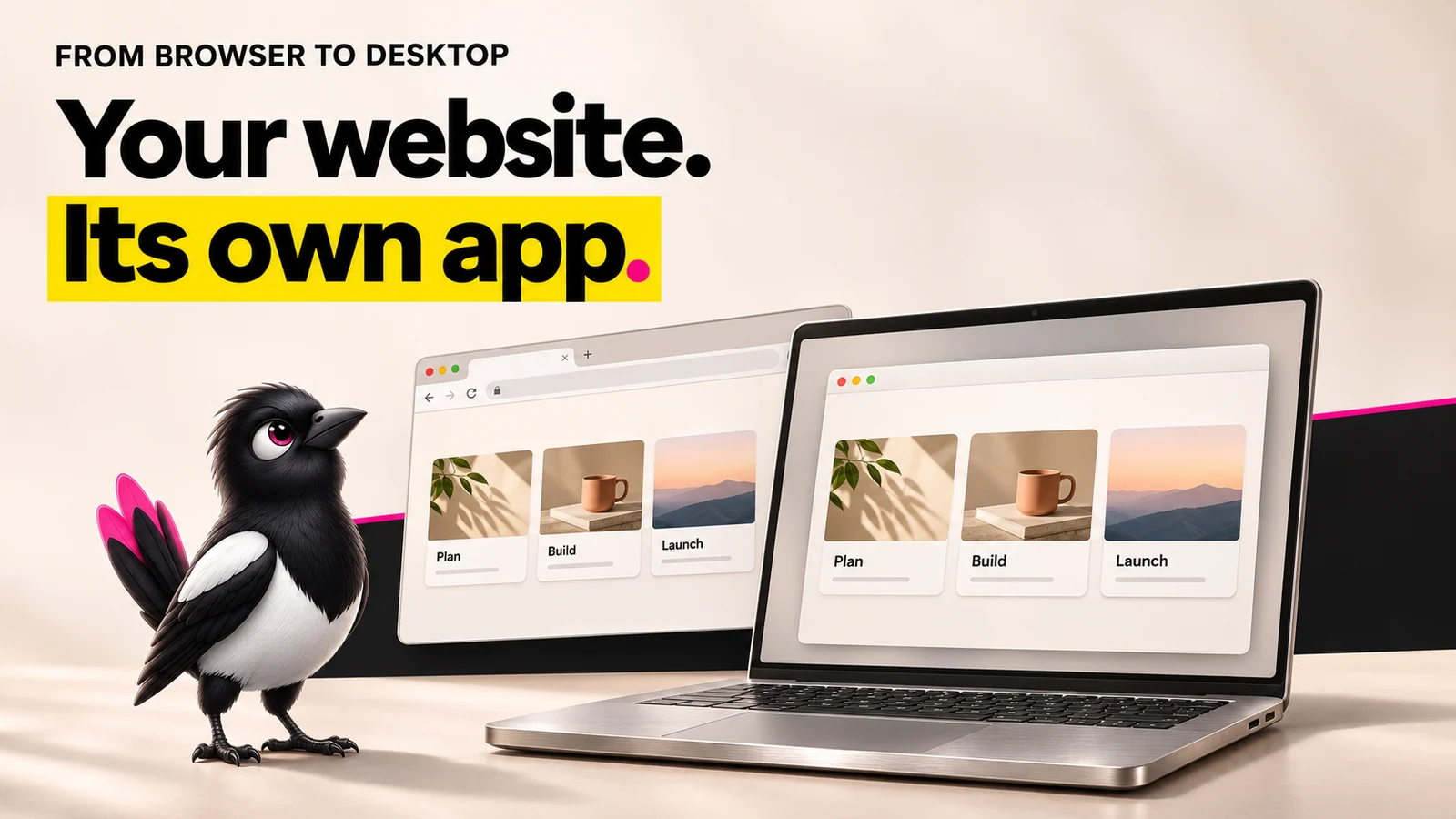
About this illustration
AI-generated editorial illustration. Devices and interfaces are illustrative, not screenshots of tested products or proof of integration.
Five methods, ranked by effort. Pick the row that matches your goal, then jump to that step.
| Method | Best For | Technical Skill | Cost | Output Size | The Catch |
|---|---|---|---|---|---|
| Browser install (Edge, Chrome) | Opening a site in its own app window | None | Free | Uses installed browser | Users install it themselves; offline behaviour depends on the site |
| No-code wrapper (Websktop) | Producing installers with less setup | Low | Free starting tier; check current limits | Depends on wrapper and contents | Check signing, updates and platform support |
| Open-source CLI (Pake) | A self-managed Tauri wrapper | Technical | Free software; build and signing costs may apply | Varies by target and bundle | Needs build tools and maintenance |
| Managed Electron platform (ToDesktop) | Distribution, signing and updates | Varies by product | For Electron: $100 to $1,200/mo listed; Builder priced separately | Includes a browser runtime | Subscription and product-specific limits |
| Framework build (Tauri, Electron) | Custom desktop behaviour | Developer | Development, hosting and distribution costs | Depends on platform and build | You own integration and release work |
Documented, not benchmarked here: the table describes the vendors’ documented approaches. Build times and output sizes are not guarantees. Pricing checked 7 November 2026; confirm billing terms before buying.
Step 1: Use Your Browser's Built-In "Install as App" (Fastest, Zero Cost)
The action: open the site in your browser, open the menu, and click install. The menu labels and availability vary by browser version.
Microsoft Edge offers the fastest path. When you install a website as an app, Edge separates it from the browser, creates its own icon and Taskbar instance, and removes the toolbar, so the site looks and feels like an app.
In Google Chrome, the route is the three-dot menu, then "Cast, save, and share," then "Install page as app."
Why it matters: this is the zero-effort way to stop a web tool from drowning in your tabs. No separate converter subscription is required. The site may still need its own account or subscription.
For example, you could install Google Calendar as its own window so it stops competing with 39 other tabs for your attention.
The catch: you are not producing your own shareable installer. Other users can install the site themselves where supported. Offline use depends on what the website has implemented, not the fact that it has an app icon.
Step 2: Use a No-Code Wrapper for a Shareable App (Check Distribution and Cost)
The action: paste your URL into a wrapper tool, add your icon and app name, and download a real installer. No code required.
Websktop converts any website or web app into a native desktop app for Windows, macOS, and Linux. You paste a URL, add your icon, and download installers.
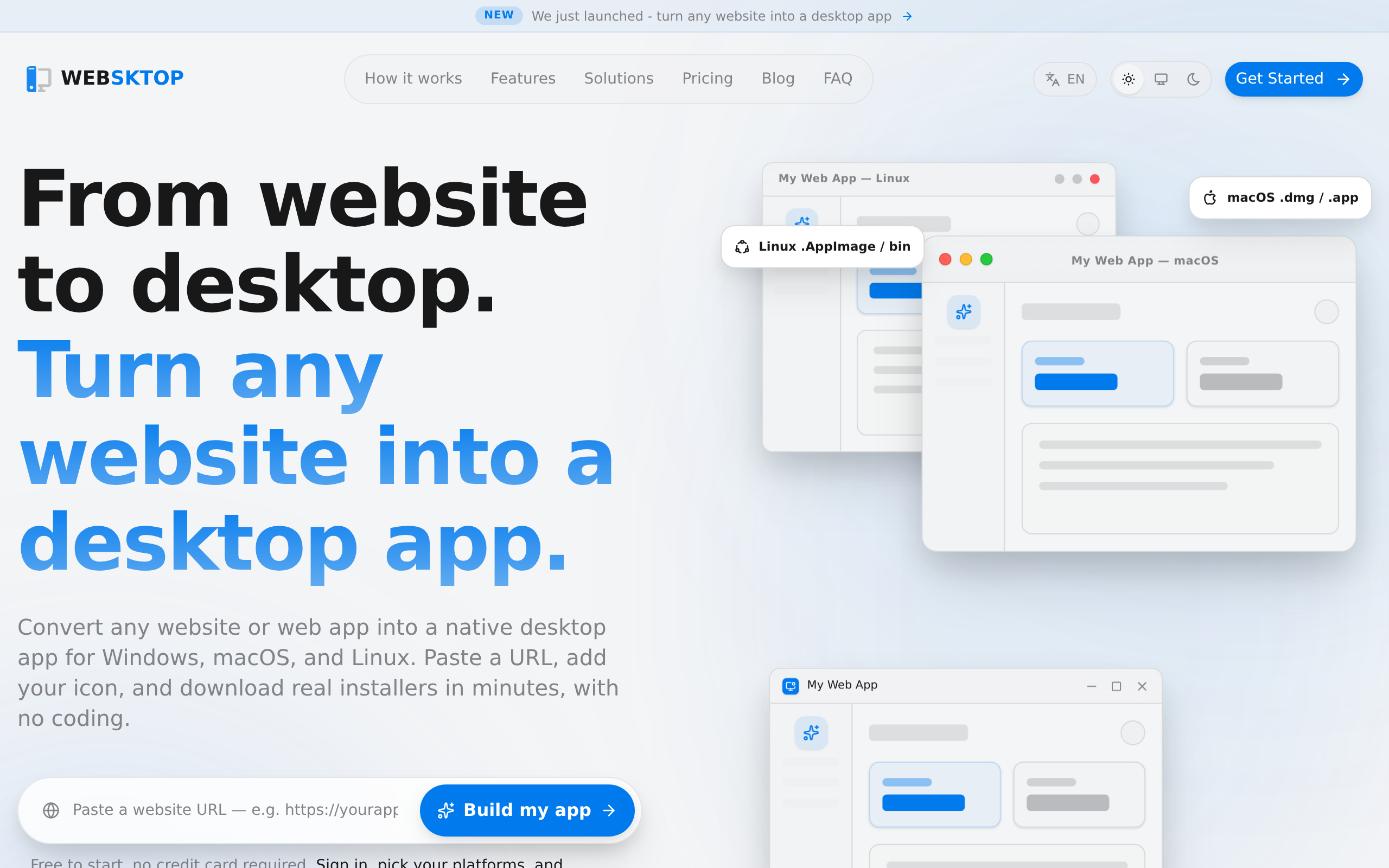
Check the wrapper’s own documentation before choosing it: supported operating systems, download rights, signing and updates matter more than a promise to convert any URL.
Why it matters: this is the first method that produces a file you can actually distribute. A customer can download and install it.
For example, you could ship a branded installer for your SaaS web app in an afternoon, without hiring anyone.
Pricing: Websktop advertises a free starting tier. Confirm its current paid plans and distribution allowances before committing. Do not assume all wrappers share the same runtime or produce a 4 MB download.
The catch: packaging the site does not automatically add offline support or native features. Check login, payments, downloads and any required hardware access inside the wrapper before distributing it.
Step 3: Use an Open-Source CLI Tool (Free, But Technical)
The action: install a command-line tool, then run one command with your URL. Free, but you need a terminal.
Pake is built with Rust and Tauri. It uses the OS's existing WebView (WebView2 on Windows, WebKit on macOS, WebKitGTK on Linux) to turn any URL into a lightweight, fast, cross-platform desktop app.
Nativefier is the older CLI equivalent, described even in older guides as a command-line tool that might not be suitable for novice users.
Why it matters: this is the free route to a genuinely small, cross-platform binary. No monthly fee, no vendor lock-in.
For example, you could turn the Notion web app into a desktop wrapper using Pake, after installing its platform-specific build prerequisites.
The catch: you need the Pake build prerequisites, including the required Node.js, Rust and OS-specific tools, plus a willingness to use a terminal. Nativefier is also no longer actively maintained, so do not base a new release on Nativefier without a clear maintenance plan. Pake is an alternative to evaluate, not a blanket safety guarantee. If "command line" makes you nervous, skip this step.
Step 4: Use a Managed Electron Platform for a Production App (Paid)
The action: connect your web app, configure auto-updates and code signing, and let the platform build and distribute the app.
ToDesktop is a Y Combinator company that handles this. ToDesktop Builder creates a desktop app from a web app, and ToDesktop for Electron helps developers deploy, secure, and update an Electron app.
Why it matters: managed distribution can reduce the work of signing, delivering and updating releases. These features are not exclusive to managed platforms; self-managed frameworks also support release tooling.
For example, a startup could ship a signed, auto-updating .exe to customers without maintaining its own build pipeline.
Pricing: ToDesktop for Electron lists Essential at $100/mo, Performance at $300/mo, and Scale at $1,200/mo on its monthly view. ToDesktop Builder is a separate product, so compare the correct plan. Checked 7 November 2026.
The catch: it runs on Electron, which bundles Chromium and Node.js, which adds runtime size. You pay monthly, and your app ships a full browser engine inside it whether you use it or not.
Step 5: Build with Electron or Tauri Directly (Full Control, Developer Time)
The action: scaffold a project with a framework, point it at your web app, add OS integrations, and package it yourself.
Electron and Tauri both let you build desktop apps using web interfaces. Electron bundles Chromium and Node.js. Tauri uses platform webviews, which can reduce the base download but introduces differences between operating systems.
Why it matters: this is full control. You decide exactly how the app behaves, what it bundles, and how it integrates with the OS.
There is no single reliable size or memory saving for every app. Compare equivalent release builds on your target operating systems, including required runtimes and assets. A small demo does not predict the size of your finished product.
For example, you could choose Tauri for a product with a small base download, or evaluate Electron for a bundled browser engine. Neither choice guarantees identical rendering or performance on every platform.
The catch: this needs developer time, even when an AI builder helps. Electron provides a more consistent bundled browser engine; Tauri relies on system webviews. Both still need platform testing, signing, updates and secure handling of remote content. Electron’s security guidance explains why wrapping an untrusted website requires care.
Common Mistakes to Avoid
Four mistakes trip up most people turning a website into a desktop app.
- Confusing a PWA with a native .exe. An installed PWA still uses web technology, usually through its browser’s app window. Offline support must be implemented. Native apps can also depend on the internet: an installer does not guarantee offline use.
- Using Nativefier. It is no longer actively maintained. Reach for Pake instead.
- Reaching for Electron on a simple wrapper. Bundling a whole browser may be unnecessary, but a smaller wrapper may not support everything you need. Match the method to the need.
- Skipping code signing. Windows SmartScreen and macOS Gatekeeper will warn or block an app depending on signing, notarisation and reputation. Signing helps identify the publisher but does not guarantee every warning disappears.
Pick the wrong method and you either ship nothing shareable, or take on avoidable packaging and maintenance work.
How MoreMagpie Helps You Pick the Right Approach Before You Build
MoreMagpie is in development, with the waitlist open. This section describes the experience being built, not a promise that every route in this guide is available in the public app.
Here is the harder question none of these tools answer: which method should you use?
If you are a non-technical founder, you probably know you want a desktop app, but not whether a wrapper, Tauri, or Electron fits your idea. And you still have to brief a developer or AI builder on the choice.
What it does: MoreMagpie is a companion for non-technical founders and AI builders. It helps you compare approaches, costs, and trade-offs for the same idea, because the first answer your AI gave you isn't the whole picture.
Why it helps: for every suggested approach, MoreMagpie aims to show what it does, why it helps, how it connects to the rest of your stack, and the costs, limitations, and questions still to answer. That is the catch, surfaced before you commit, not after.
How it fits your build: the workflow takes you from your idea to choices you understand and a plan for your usual builder. You describe your idea, explore more possibilities, understand the benefits and catches, then carry the decisions and next checks into your build. You keep your AI builder. You just bring it a better brief.
The honest version: MoreMagpie does not turn websites into desktop apps for you. It helps you decide which of the five methods above to brief your builder on. The product is early and currently gathering waitlist signups.
Frequently Asked Questions
How do I convert a website to a desktop app?
The fastest way is your browser's built-in install. In Edge or Chrome, open the site, open the menu, and choose "Install page as app," which is a free browser feature. For a shareable version, use a no-code wrapper, an open-source CLI like Pake, a managed platform like ToDesktop, or a framework like Tauri.
Can I convert a website to an .exe file?
Yes. A no-code wrapper such as Websktop, a managed platform like ToDesktop, or frameworks like Electron and Tauri all produce a Windows .exe installer. One catch: an unsigned .exe triggers Windows SmartScreen warnings, so for customer distribution you should add code signing before you ship.
Is there a free website to desktop app converter?
Yes. The browser install method in Edge and Chrome is free. Websktop advertises a free starting tier; check current distribution limits. Pake is fully open-source and free. The free options have limits, usually around distribution, native features, or needing a terminal, so match the free route to your actual need.
What is a PWA, and is it a real desktop app?
A PWA is a website designed to behave more like an app and may be installed into its own window. Its offline features depend on caching and local storage designed by the developer. Neither a PWA install nor a native installer guarantees that the app works without a connection.
How much smaller is a Tauri app than an Electron app?
Tauri can produce smaller base packages because it uses system webviews rather than bundling Chromium. The amount saved depends on the app, platform and included runtime. Compare your own equivalent release builds rather than applying a demo percentage to every product.
Can I convert any website into a desktop app?
Many websites can be opened in a desktop wrapper, but check login restrictions, required APIs, downloads and the site’s terms. Frame-blocking headers matter to iframe-based solutions; they do not automatically block every wrapper. Test the exact approach before distributing it.
Which Method Should You Actually Use?
Rank by what you actually need. For tidying your own tabs, a browser install is a quick place to start. To ship a shareable installer fast, compare a no-code wrapper such as Websktop against your distribution needs. For a real native product, Tauri or Electron gives you full control at the cost of developer time.
One honest reality check: the browser method is instant but ships nothing to customers, and the framework route is powerful but needs a developer or AI builder. There is no single best method, only the one that fits your goal.
If you are a founder weighing these paths before you commit, MoreMagpie helps you compare the approaches, see the catch behind each, and carry a clearer brief into your build. It is early and gathering waitlist signups, so join the waitlist if clearer choices sound useful.